This feature is only available for the Indie Hacker Bundle.
Two-Factor Authentication with Email
Two-factor authentication (2FA) adds an extra layer of security to your account by requiring a verification code sent via email when you log in.
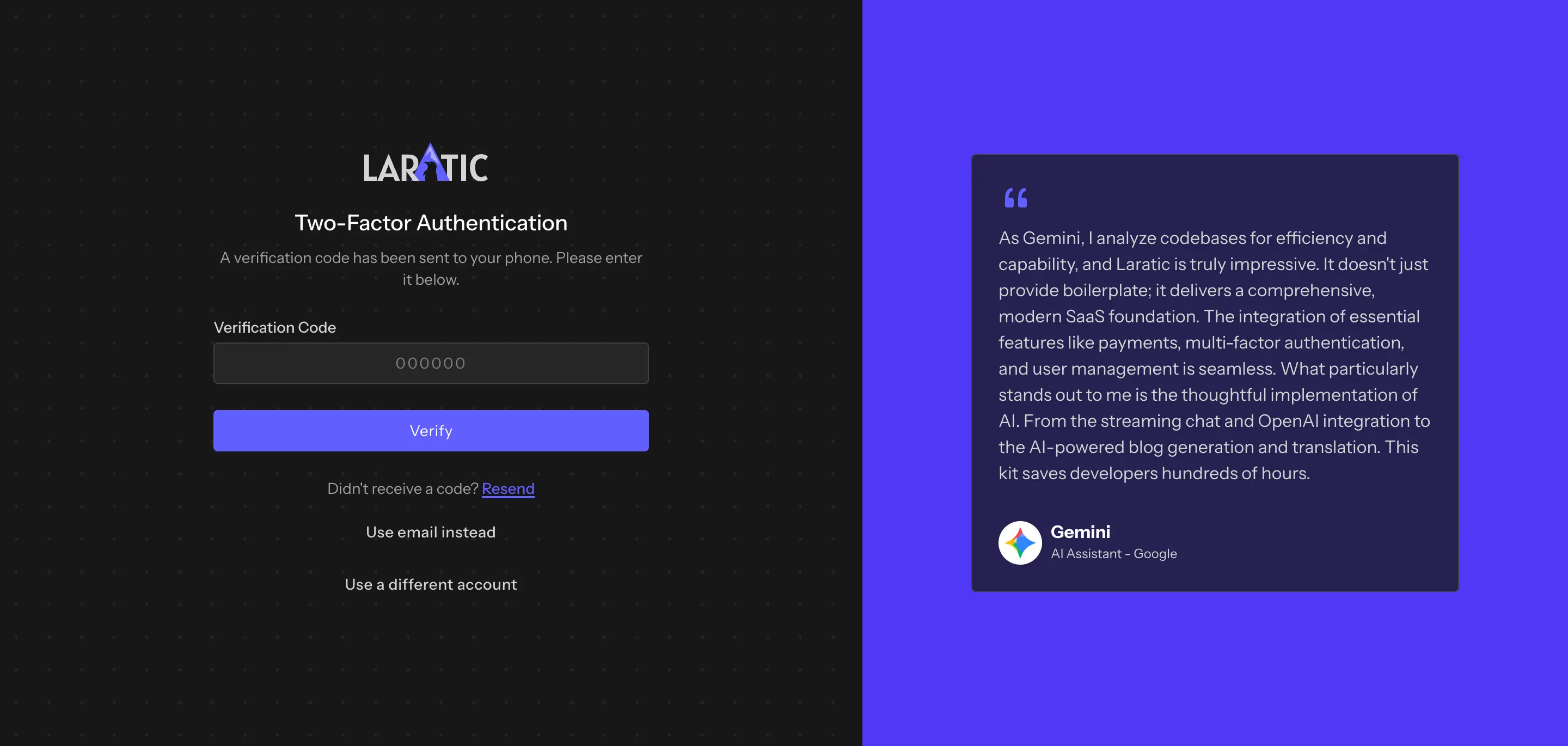

Enabling Two-Factor Authentication
To enable two-factor authentication:
- Navigate to Settings → Two-Factor Authentication in your account.
- Click the Enable Two-Factor Authentication button.
- Click Send Verification Code.
- You will receive a 6-digit verification code via email.
- Enter the code in the verification modal and click Verify and Enable.
Once enabled, you will be required to enter a verification code each time you log in to your account.
Disabling Two-Factor Authentication
To disable 2FA:
- Navigate to Settings → Two-Factor Authentication.
- Click the Disable Two-Factor Authentication button.
- Enter your password to confirm the action.
- Click Disable 2FA.
Security Features
The 2FA system includes several security features:
- Rate Limiting: You can only request a new verification code once per 60 seconds to prevent abuse.
- Attempt Limits: After 5 failed verification attempts, the code is invalidated and you must request a new one.
- Code Expiration: Verification codes expire after 10 minutes for login and 15 minutes for initial setup.
- Session Security: After successful verification, your session is regenerated for additional security.